 Mac Explorer
How to batch rename files on a Mac
Finder can replace or add text and number files. Use the batch rename workspace in Mac Explorer when you want to preview each new name, combine rules, or check for name conflicts.
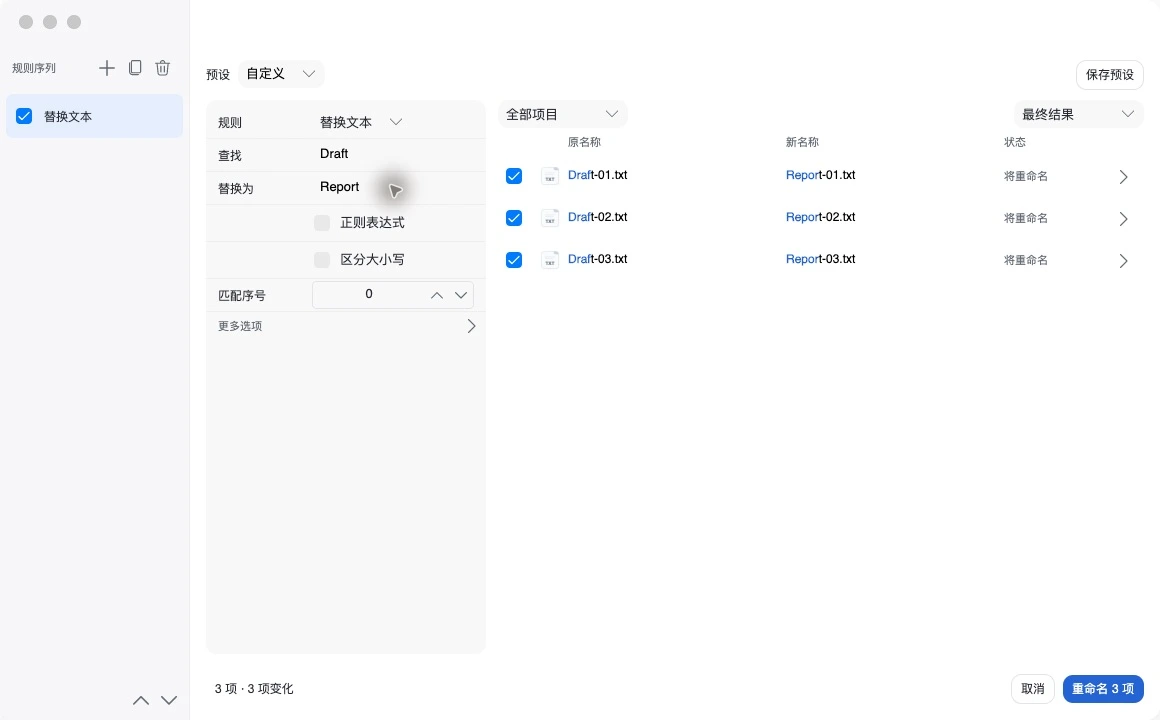
Preview and apply changes in Mac Explorer
- Select Draft-01.txt, Draft-02.txt, and Draft-03.txt. Press Command-Shift-R to open Batch Rename.
- Select the text replacement rule. Enter Draft as the text to find and Report as the replacement.
- Check the New name column. The number and .txt extension should stay in place. If names conflict, adjust the rule, edit the proposed name, or deselect that item.
- Click Rename 3 items and review the results. Use Undo this rename from the results if you need to restore the previous names.
Combine and reuse rules
Add a prefix, date, or sequence number after the replacement rule. Rules run from top to bottom, so changing their order can change the output. Save a preset when you need to repeat the same workflow.
Use Finder for simple changes
Select multiple files, open the shortcut menu, and choose Rename. Pick Replace Text, Add Text, or Format. Keeping the original extension, such as .jpg or .pdf, helps files continue to open in the expected app.